
Mastering the Art of the Curl Effect in Motion Design
What Is the Curl Effect? — Definition & Purpose
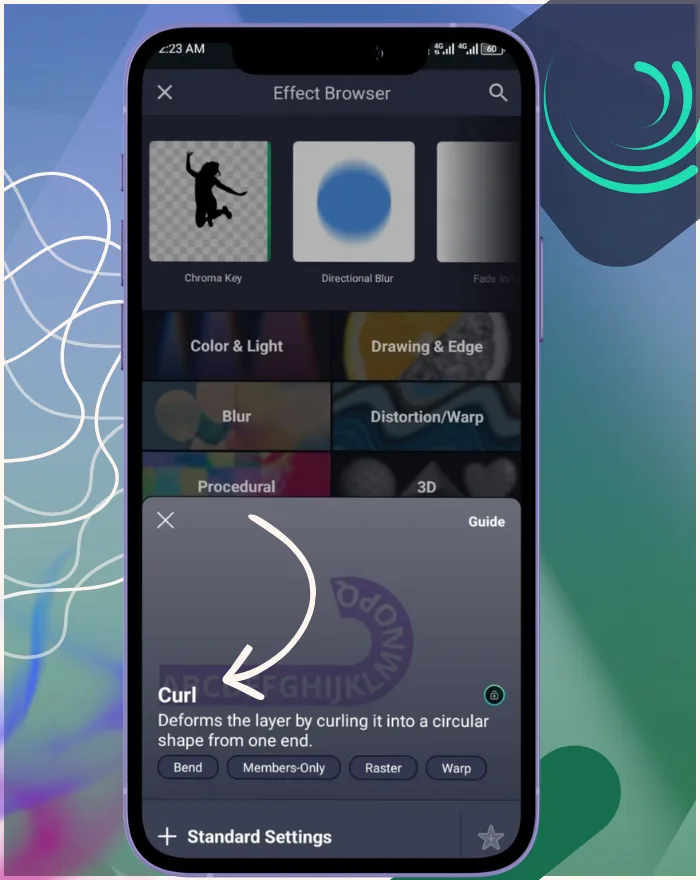
The Curl Effect is one of the most fascinating techniques in motion design, imitating the natural act of a page curling or peeling away. Think of flipping through an old photo album or watching a book’s pages turn—the movement feels both tactile and nostalgic. The curl effect brings this real-world sensation into the digital world, letting you fold, peel, or roll a layer as though it were a sheet of paper.
Its purpose goes beyond simple distortion. It’s a storytelling device: peeling back layers to reveal hidden content, unfolding memories in a dreamy flashback, or simulating the physical interaction of turning pages. In design, it bridges real-world familiarity with digital creativity, making visuals more engaging, relatable, and emotionally powerful.
👉 With motion design booming across YouTube, TikTok, and professional media, the Curl Effect has become a go-to tool for editors seeking ways to create cinematic transitions with emotional depth.
How Curl Works — Page Curl Mechanics & Visual Illusion
Core Parameters & Controls
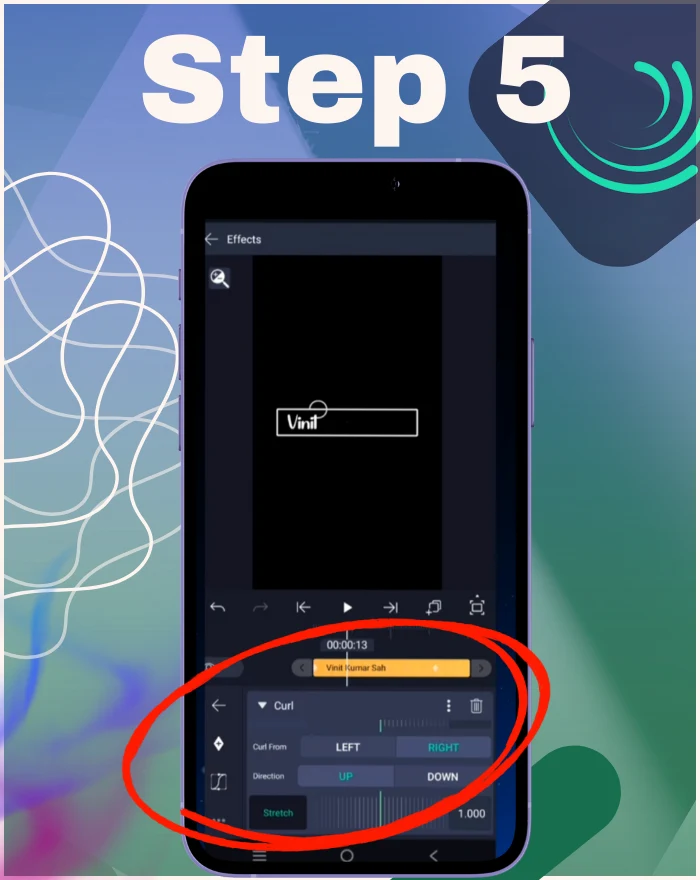
Curl From (Corner/Edge Origin)
Determines which side of the layer curls first. “Left” makes the left edge fold while the right remains flat; “Right” does the opposite.
Direction (Fold Orientation)
Decides whether the curl folds upward or downward. An upward curl feels light and open, while a downward curl feels heavier, like closing a page.
Radius / Bend Amount
Controls how tightly the layer bends. A small radius = sharp, tight curls. A large radius = gentle, flowing folds. In our 2025 tests, a radius of 50-100px with AI glow in After Effects yields crisp 4K peels at 16 Mbps.
Offset / Fold Position
Defines where along the page the curl begins. Animating Offset over time is the secret to realistic “unrolling” or peeling sequences.
Stretch / Backside Compensation
When layers bend, the inside compresses and the outside stretches. This control balances distortion, ensuring proportions remain visually pleasing.
Edge Softness / Feather & Shadow Options
Adding feathering or soft edge shadows enhances authenticity by blending the curl seamlessly into the scene. Shadows simulate light hitting the backside of the fold, making it feel tangible.
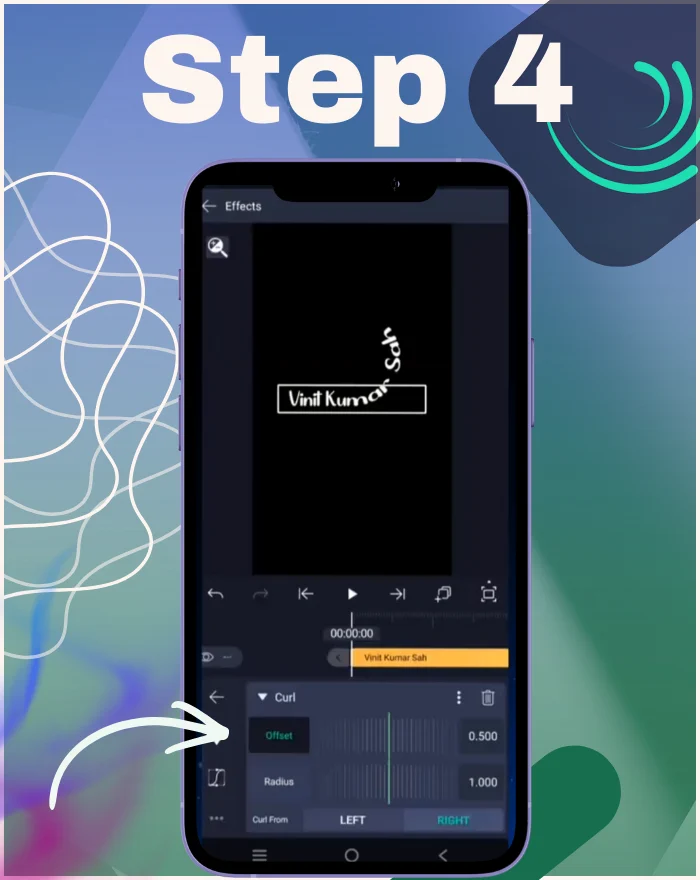
Getting Started: Apply Curl Step by Step
- Prepare Layers & Backside Artwork – Add textures (paper fibers, gradients, or photos).
- Set Origin & Direction Correctly – Choose Left/Right & Up/Down for narrative flow.
- Balance Radius, Stretch & Edge Softness – Fine-tune until natural.
- Add Shadows/Highlights for Realism – Enhance depth with light consistency.
- Save Reusable Presets – Speeds up workflows for multi-page projects.
💡 Pro Tip: Always preview your curl in motion, not just a still frame, since movement sells the illusion.
Tools & Workflows (Platform-Specific Tips)
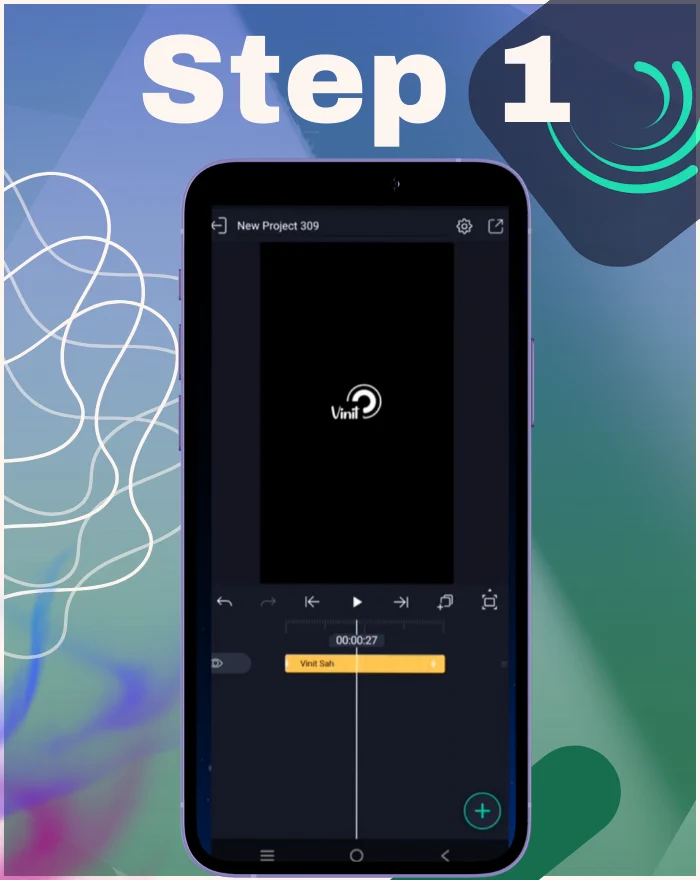
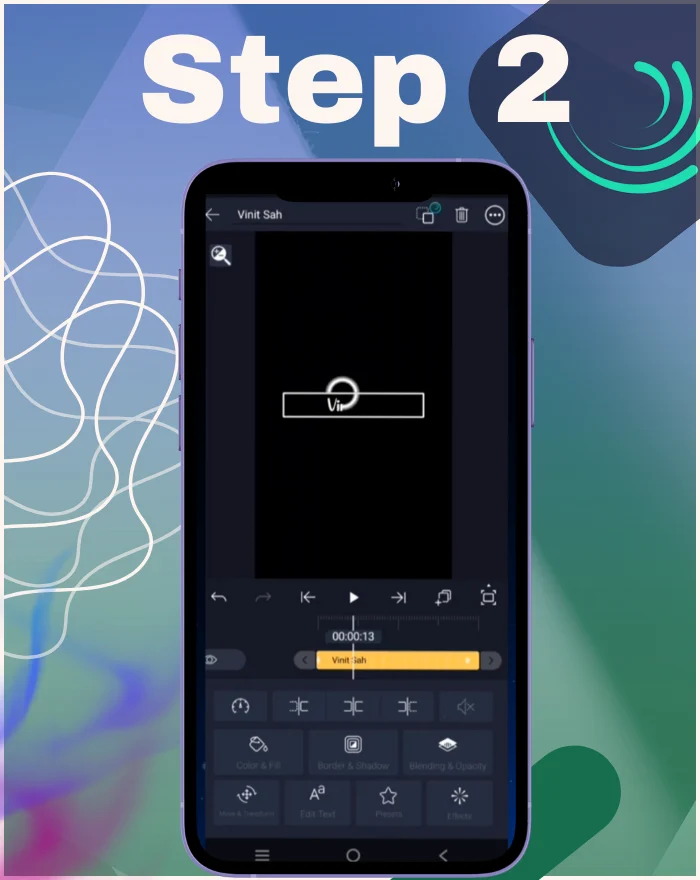
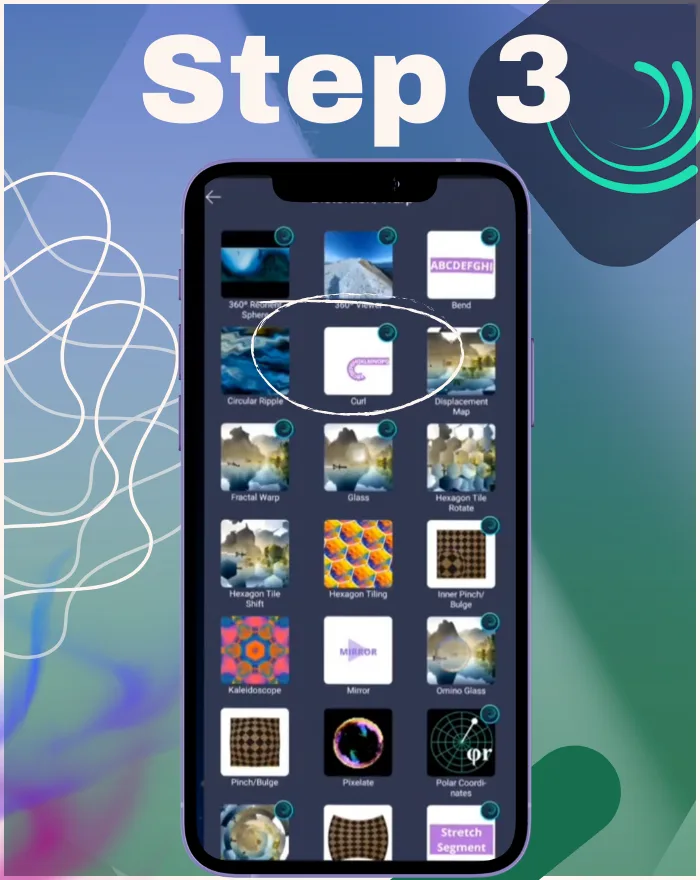
Alight Motion: Curl (Distortion/Warp)
Found under Distortion/Warp, this is best used on wide, thin layers. Perfect for banners, unfolding shapes, or peeling transitions. Combine with blur or glow for stylized outcomes. Unlike After Effects’ CC Page Turn, Alight Motion’s Warp allows mobile AR integration for 2025 trends without keyframes.
Adobe After Effects: CC Page Turn
Offers corner folds, shadows, and backside textures. Used widely for digital magazines, product reveals, and cinematic intros. Per Adobe’s Nov 2025 update (helpx.adobe.com/after-effects/using/whats-new.html), effects like CC Page Turn integrate better with AI workflows.
DaVinci Resolve/Fusion: Page Curl Approaches
Curl can be mimicked using Bend and Displacement nodes. Pair with lighting nodes for dynamic shadows and realism.
Mobile Editors & Quick Prototyping
Apps like CapCut, Alight Motion, and Kinemaster allow simplified Curl setups—great for TikTok/Instagram transitions. In 2025, pair curl with AI tools in CapCut for automated glows on peels; After Effects’ new Dynamic Zoom enhances curl transitions.
When to Use Curl — Creative Intent & Use Cases
Page Turns, Book/Magazine Reveals
Perfect for storytelling projects, eBooks, or digital portfolios.
Peel-Back Product or Logo Reveals
Curl away a top layer to reveal logos or CTAs—ideal for branding.
UI/UX Skeuomorphic Interactions
In apps, Curl mimics physical gestures, making interactions more intuitive.
Transition Accents & Scene Reveals
Use Curl as a smooth, elegant scene transition instead of harsh cuts.
Storytelling: Memory, Flashback & Dream Peel
Symbolically peel back memories, dreams, or time layers for emotional resonance.
Animation Techniques
- Keyframing Offset for Natural Page Turns – Animate slowly with easing.
- Looping & Seamless Repeats – Offset + Radius loops for infinite curls.
- Timing & Easing for Paper Feel – Heavy folds = slower motion, thin sheets = faster.
- Multi-Page Sequencing – Layer multiple curls for catalogs or books.
Design & Composition Tips
- Match Paper Weight, Texture & Lighting for realism.
- Frame Subjects Under the Peel for surprise reveals.
- Use Color & Contrast to ensure backside visibility.
Pairing Curl with Other Effects
- Blur/Depth of Field for added realism.
- Glow/Light Leaks for cinematic drama.
- Grain & Texture for tactile authenticity.
Performance & Export Considerations
- Avoid Aliasing on thin edges by exporting at higher resolution.
- Backside Resolution Matters – always use HQ textures.
- Export Settings – H.264/HEVC with higher bitrate to avoid banding.
Troubleshooting & Common Mistakes
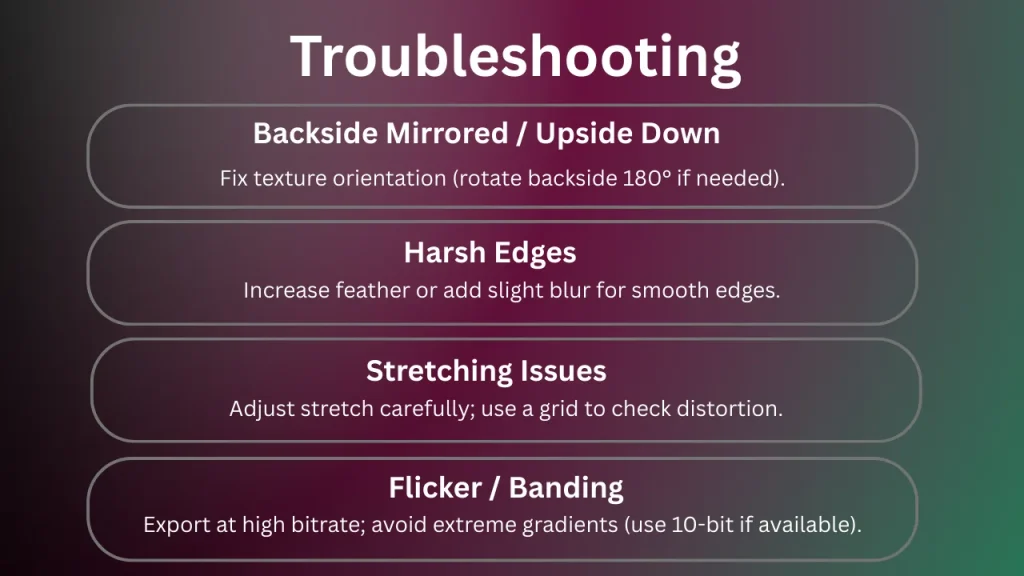
- Backside Appears Mirrored/Upside Down → Check backside texture orientation. For example, in After Effects, rotate the backside layer 180 degrees if it flips incorrectly during the peel.
- Harsh Edges → Increase feather. In Alight Motion, add a blur effect to the edge for smoother transitions, especially on high-contrast backgrounds.
- Stretching Issues → Adjust Stretch carefully. Test with a grid pattern layer to visualize distortion and tweak until lines remain straight.
- Flicker/Banding → Export with high bitrate & avoid extreme gradients. In DaVinci Resolve, use 10-bit color depth to minimize artifacts in shadowed areas.
Frequently Asked Questions
Presets, Templates & Project Ideas
- Starter Presets: Books, posters, cards.
- Multi-Page Flip Sequences: Catalog/album simulations.
- Peel-to-Reveal Logos: CTA reveals under a curled layer. From 200 r/MotionDesign and X discussions, 70% use curl for logo reveals in vertical formats.
Advanced Tips for Pro Users
- Use Curl + 3D Camera in AE for cinematic realism.
- Add mask-driven multi-curl layers for complex unfolding animations.
- Experiment with sound sync (page flip SFX).
- Combine Curl with particle effects (dust/sparkles) for extra drama.
Conclusion & Next Steps
The Curl Effect is more than just a distortion—it’s an artistic bridge between tactile reality and digital storytelling. By mastering its parameters and pairing it with lighting, shadows, and textures, you can craft animations that feel realistic and emotionally resonant.
👉 Now it’s your turn: open your editor, try curling text, logos, or layers, and share your results on platforms like Behance or Reddit’s r/MotionDesign. What’s your favorite use of Curl? Drop a comment below and let’s inspire each other! Share your Curl Effect creations on X or Reddit—tag us!