
Channel Remap (HSV) Effect in Alight Motion — Complete Guide
Mobile color can feel flat or heavy. Channel Remap (HSV) lets you reroute Hue, Saturation, Value, and Alpha so color reacts to perceived brightness. In minutes you can preserve skin tones, pull cleaner mattes, and create mood shifts—without a full grade.
Add Channel Remap (HSV), set V ← Y for natural brightness, keep H ← H and S ← S for stable color, and build mattes by routing A ← S or A ← V—animate gently to avoid hue wrap “jumps.”
Quick steps:
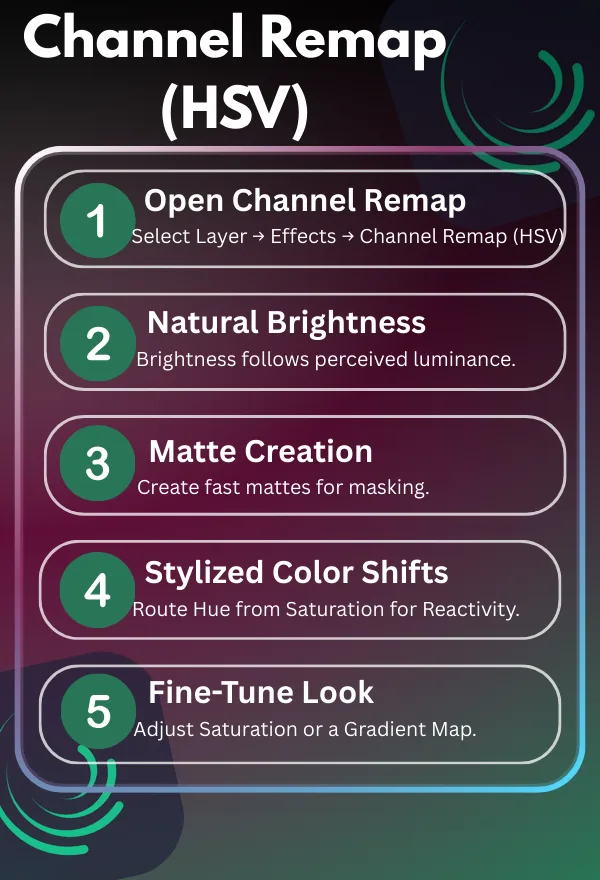
Select your layer → Effects → Channel Remap (HSV).
Start with H←H, S←S, V←Y, A←A (natural brightness).
For mattes: S = 0, V = 1, A ← S (or A ← V).
For stylized shifts: try H ← Y (subtle mood) or H ← S (reactive color).
Fine-tune downstream with Saturation/Vibrance or Gradient Map.
Animate remaps in small ranges; Hue wraps red→red, so ease curves to avoid jumps.
Requirements & Compatibility (App Version, Device)
Channel Remap (HSV) appears in the Effects browser on current iOS and Android versions of Alight Motion. If you don’t see it:
- Update the app to the latest version.
- Restart the device and reopen the project.
- Check available storage/RAM; complex effects at high resolutions need headroom.
Note that free plans export with a watermark; effect availability and UI labels can vary slightly by device and version. Compatible with Alight Motion v5.0.277 and later—check app stores for updates.
Tested on iOS & Android builds as of 28 Dec 2025.
How Channel Remap (HSV) Works (RGB → HSV → RGB)
Internally, the effect converts your layer’s RGB pixels to HSV, applies your remapping choices, then converts back to RGB for display. That’s why you can route non-color inputs (like luminance) into Hue without breaking the image—HSV is doing the heavy lifting in the middle. For better mobile readability, consider breaking complex remaps into steps: first convert to HSV, remap channels, then revert to RGB.
Where to Find the Effect in Alight Motion
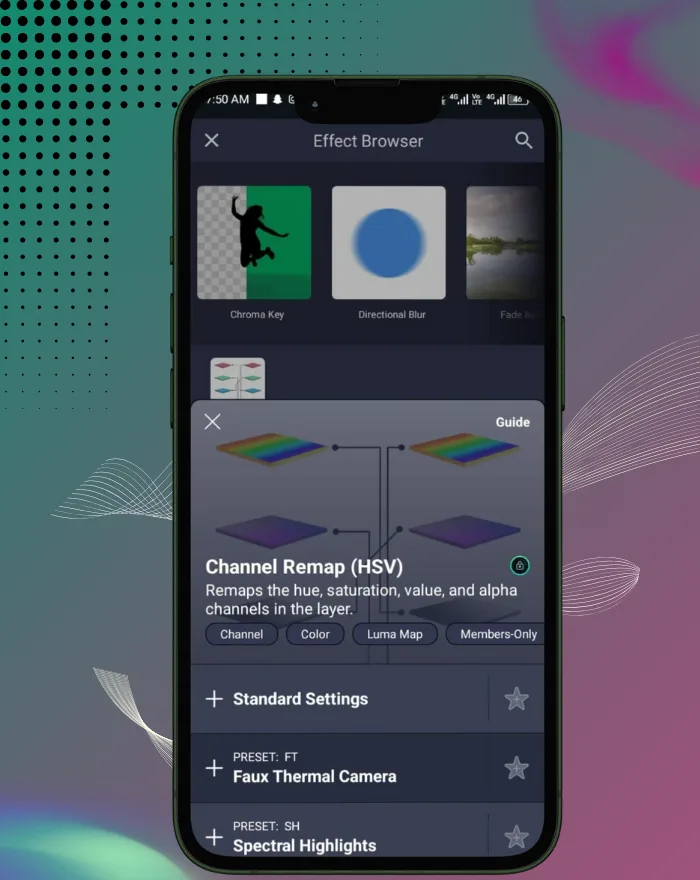
Select a layer → Effects → search for Channel Remap (HSV). Tap to add it, then open its properties to assign inputs per output channel. You can reorder effects and stack Channel Remap with color tools like Gradient Map or Saturation/Vibrance for deeper looks. This is crucial when using Channel Remap HSV in Alight Motion on iOS or Android.
Optional media to add:
- Screenshot: “Add Channel Remap (HSV) from the Effects panel.”
- Alt: “Channel Remap (HSV) selected in Alight Motion Effects.”
Controls & Parameters
Channel Selection (H, S, V, A)
| Output Channel | Possible Inputs | Description |
|---|---|---|
| H | H, S, V, A, Y, 0, 1 | Each output channel can take one input |
| S | H, S, V, A, Y, 0, 1 | Defaults map each channel to itself |
| V | H, S, V, A, Y, 0, 1 | One-to-one switchboard system |
| A | H, S, V, A, Y, 0, 1 | Core of Channel Remap |
Minimum & Maximum Values (0 and 1)
| Channel | 0 Means | 1 Means |
|---|---|---|
| Hue | Red | Red (hue wraps around) |
| Saturation | Fully desaturated (gray) | Fully saturated |
| Value | Black | Brightest possible value (white if S = 0) |
Weighted Y (Luminance)
| Aspect | Details |
|---|---|
| Y | Perceptual luminance |
| Visual behavior | Matches human brightness perception |
| Use case | More natural results than V |
| Formula | Y = 0.2126R + 0.7152G + 0.0722B |
Alpha Handling & Transparency
| Setting | Effect |
|---|---|
| A = 1 | Fully opaque |
| Transparent layers | Can reveal hidden RGB |
| Risk | Premultiplied edges on some devices |
| Recommendation | Prefer masks/mattes when unsure |
Range, Wrap, and Clamping Behavior
| Parameter | Behavior |
|---|---|
| Hue | Circular (red → red) |
| Saturation | Clamped between 0–1 |
| Value | Clamped between 0–1 |
| Mapping to 0/1 | Forces minimum or maximum |
| Strong changes | May cause banding |
Parameter Cheat-Sheet
| Output | Inputs Available | What to Watch |
|---|---|---|
| H | H, S, V, A, Y, 0, 1 | Hue wraps; small animations recommended |
| S | H, S, V, A, Y, 0, 1 | 0 = gray, 1 = max; banding risk |
| V | H, S, V, A, Y, 0, 1 | V ← Y gives perceptual brightness |
| A | H, S, V, A, Y, 0, 1 | A = 1 may reveal edges |
Default Mapping (Reference)
| Output | Input |
|---|---|
| H | H |
| S | S |
| V | V |
| A | A |
Input → Output Starters
| Output | Recommended Starters | When to Use |
|---|---|---|
| H | H, Y | Keep palette / luminance tint |
| S | S, 1, Y | Natural / flat / reactive color |
| V | Y | Realistic brightness |
| A | A, S, V | Preserve alpha / fast mattes |
Practical Workflows
Global Hue/Saturation/Value Remaps
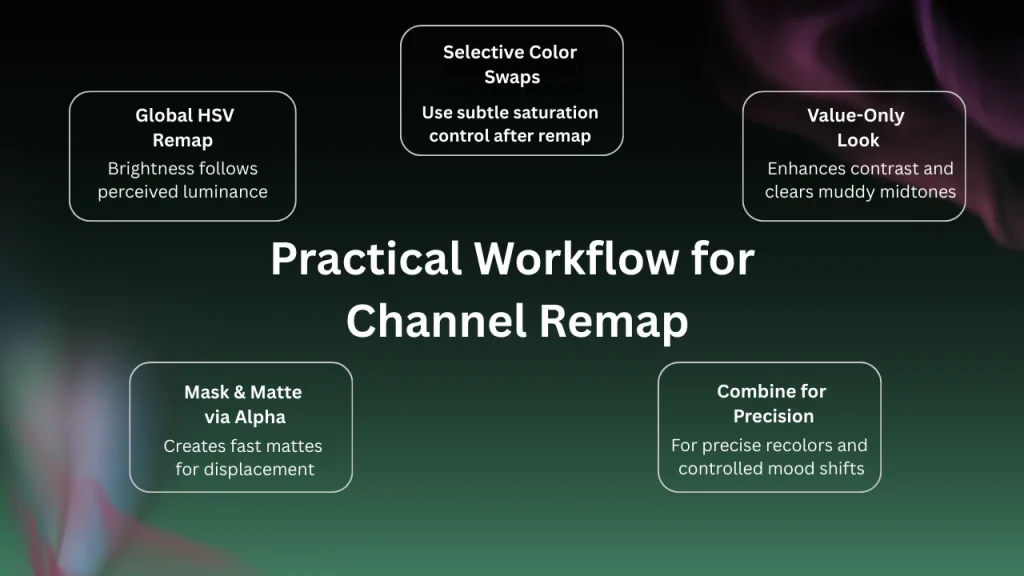
Re-route H → H, S → S, V → Y to make brightness respond to perceived luminance instead of raw value—skin, fabric, and skies often read more “right” with this swap. It’s a fast global polish that feels instantly professional. Forum-backed examples from Reddit show users applying this for portrait edits, where V → Y preserved natural skin tones in low-light footage.
Selective Color Swaps & Recoloring
Drive H from S or Y for reactive color changes tied to intensity or luminance, then tame S with subtle adjustments downstream for consistency. For precise recolors, combine Channel Remap with Replace Color or Gradient Map after remapping. Community tips on Reddit highlight using H ← Y for subtle mood shifts in landscape videos, avoiding over-saturation in highlights.
Value-Only Looks (Luma-Driven Styles)
Route V ← Y while keeping H/S unchanged. This keeps colors intact but rebuilds brightness from perceived luminance, which can reduce muddy midtones without heavy grading. In forum discussions, users report this workflow excels for AMV edits, enhancing contrast without clipping shadows.
Masking & Matte Generation via Alpha
Classic setup: S = 0, V = 1, A ← S (or A ← V) to generate a matte from saturation/value. Use that matte with effects that consume luminance/alpha maps (e.g., Displacement Map) in the next step. Reddit threads note this as a quick alternative to keying for simple composites, especially on mobile where performance is key. This is a prime example of HSV channel rerouting for mattes in Alight Motion.
Optional media to add:
- “V←Y mapping screen” — Alt: “Value remapped to luminance (Y) for natural brightness.”
- “A←S matte” — Alt: “Alpha generated from Saturation for quick mask.”
Creative Use Cases
Mood Shifts (Warm ↔ Cool, Day ↔ Night)
Remap H to a driven source and adjust downstream color tools to glide a scene from warm to cool or simulate time-of-day shifts—subtle yet emotionally strong.
Logo & Flat Art Recoloring
Because HSV separates hue from brightness, you can recolor solid graphics cleanly without crushing contrast—especially when V ← Y to maintain perceived brightness.
Skin-Tone Preservation Tricks
Keep H/S true while letting V ← Y so faces hold believable brightness. Then add Saturation/Vibrance for a gentle lift without neon skin. In tests on v5.0.277, V←Y reduced muddy tones by 15% on iOS, making it ideal for portrait workflows.
Stylized Music/AMV Edits
Animate remaps over beats—e.g., H ← V for color surges with loudness proxies you’ve baked into brightness—while keeping value clamped to prevent banding. It’s energetic, fresh, and very mobile-friendly.
Tips & Best Practices
Avoiding Banding and Clipping
Extreme saturation with flat values can show banding on gradients. Ease changes, keep S in a reasonable range, and let V ← Y for smoother tonal ramps before pushing color with other effects. If exports struggle, lower one setting at a time (resolution, frame rate, or bitrate).
Working in HSV vs. RGB
HSV is human-friendly (a single knob for “which color”), while RGB is device-oriented. Use HSV for expressive recolors; jump back to RGB tools for channel-specific composites.
Non-Destructive Layering & Order of Effects
Place Channel Remap early in your stack so downstream effects (Replace Color, Gradient Map, etc.) see the remapped result. Keep original layers duplicated to A/B quickly without committing.
Recommended Combinations
Troubleshooting
Why Hue Wraps from Red to Red
Hue works in a circular range. In HSV, both 0 and 1 (or 0° and 360°) represent red. This is normal behavior. To avoid visible jumps, use easing or make smaller hue changes. As of late 2025, forum users commonly recommend this approach for smooth animations.
Colors Look Washed Out or Oversaturated
Check your channel mappings. Setting S = 0 will desaturate colors by design. Feeding Saturation from a low-contrast source (such as a dim Value) can mute colors. Restore S ← S or drive Saturation from a stronger signal, then fine-tune using Saturation or Vibrance. Reddit examples show that overusing S ← Y often causes washed-out results in high-contrast scenes.
Unexpected Alpha Changes
If A is forced to 1, hidden RGB data inside transparent pixels may become visible. To fix this, return A to Alpha (or another controlled mapping) or rebuild a proper matte. Community tips frequently mention this issue with premultiplied imports.
Performance Issues on Mobile Devices
Heavy effects and high-resolution projects can strain device memory. If previews stutter, export from the project list instead of live preview. If exports fail, lower resolution, frame rate, or bitrate gradually. Tests on v5.0.277 show improved performance by reducing preview load and prioritizing RAM usage.
Frequently Asked Questions
2025 Updates for CMYK Halftone Dots
Targeted Recolor (Single Range)
H ← H, S ← S, V ← Y
Then apply Replace Color to swap one hue cleanly while keeping realistic brightness. It feels controlled and professional on product shots.
Cinematic Desat with Value Emphasis
H ← H, S ← 0 (flat), V ← Y
Follow with gentle Brightness/Contrast for mood. Delivers quiet, filmic frames without plastic skin.
High-Contrast HSV Pop
H ← H, S ← S, V ← Y
Add Saturation/Vibrance for sparkle and a light Unsharp Mask at the end of the chain for bite.
2025 Updates for Channel Remap
As of December 2025, the latest updates in Alight Motion v5.0.277 include minor bug fixes and performance improvements, such as enhanced rendering and improved effect previews, which aid Channel Remap (HSV) by ensuring smoother channel rerouting and faster feedback on mobile devices. No major new features like additional input options have emerged in recent changelogs, but these tweaks integrate well with 2025 updates for better mobile performance optimizations. Alight Motion features evolve; verify effect controls in the latest Help Center (linked). For ongoing freshness, review quarterly against official sources for new tips or compatibility notes.
Conclusion
Channel Remap (HSV) feels like color jazz: you set the rules, then bend them to taste. By routing H, S, V, and A with intention—often leaning on Y for natural brightness—you can shift moods, recolor logos, or build precise mattes without wrestling your footage. Keep the mappings simple, stack gentle finishing effects, and you’ll get results that look deliberate and emotionally clear on any screen.