How to Import and Export XML Files in Alight Motion: A Step by Step Guide
If you’ve ever admired those smooth templates, transitions, or pre-made edits in Alight Motion and wondered how creators share them so easily, the answer lies in XML files. For many editors, importing and exporting XML files in Alight Motion 2025 feels like unlocking a hidden shortcut — one that saves hours of work and makes collaboration seamless, especially with the latest features like enhanced XML QR code import.
With over 100M+ downloads, Alight Motion has become one of the most popular mobile editing apps for TikTok, Instagram Reels, YouTube Shorts, and even professional projects. XML files act like time-savers — instead of re-creating effects from scratch, you can instantly apply them to your edits. Think of it as using a recipe instead of guessing the ingredients.
Whether you’re a beginner curious about presets or a pro editor looking to back up your projects, this guide will walk you through everything you need to know. From what XML files are, how to prepare them, step-by-step import/export methods, troubleshooting, and best practices — you’ll learn it all here in simple words, including tips for Alight Motion presets XML download and fixing invalid XML errors in Alight Motion.
Let’s dive in
What You’ll Learn (Quick Overview)
In this guide, you’ll discover:
- What XML files are and how they work in Alight Motion.
- The requirements before importing or exporting.
- How to download and prepare XML presets/projects.
- Step-by-step methods to import and export XML files on Android, iOS, and PC.
- Tips to use XML presets effectively in your edits.
- Solutions to common XML errors (invalid file, missing fonts, crashes).
- Best practices for organizing and managing XML libraries.
- Advanced tricks for editing or customizing XML files.
What Are XML Files in Alight Motion?
XML stands for eXtensible Markup Language — a structured way of storing data. In Alight Motion, XML files are not videos themselves but blueprints of your project, providing a framework that captures every detail for easy replication.
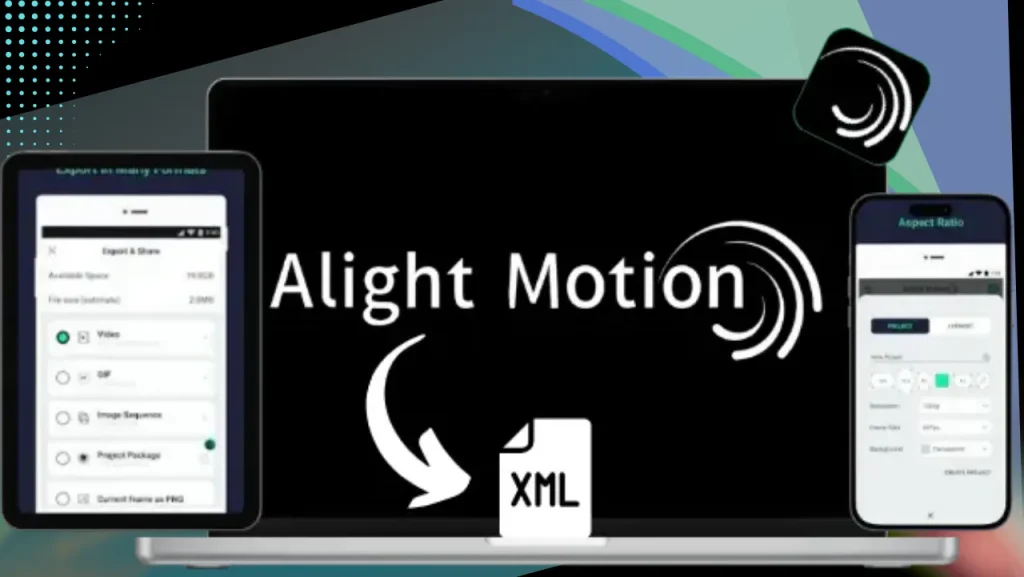
They contain:
- 🎞️ Layers (video, audio, text, overlays)
- 🎚️ Effects and presets (color grading, transitions, animations)
- ⏱️ Keyframes and timing
Unlike exporting a video, which gives you a finished product, exporting an XML file lets you or others reuse the entire project setup in Alight Motion.
👉 A simple way to think about it: XML is like sharing the recipe instead of the cake. With the recipe, anyone can create their own version, adjusting as needed for unique results.
This makes XML powerful for:
- Speeding up workflow without starting from scratch.
- Sharing templates with friends or editing communities.
- Reusing your favorite effect combinations in future projects.
Requirements & Safety Checklist
Before you import or export XML files, make sure of these:
- ✅ Supported file types: .xml or zipped XML files (.zip).
- ✅ Latest Alight Motion version installed for best compatibility (compatible with Alight Motion v5.0.273 or later). In the 2025 updates, improved QR code imports reduce crashes and enhance stability.
- ✅ Device compatibility: Works on both Android & iOS (though iOS may need extra steps like QR codes).
- ✅ Storage space & permissions: Allow storage/file manager access for saving or importing.
- ✅ Safety first: Download XML files only from trusted sources. Unverified files may break your app or include missing assets.
Pro Tip: Always read comments or reviews before downloading XML from a community link. Many creators share safe Google Drive or Mediafire links, but avoid suspicious third-party sites. Bold Tip: Suggest checking official changelogs for any recent XML tweaks to ensure smooth compatibility.
How to Download XML Presets and Projects
Finding good XML presets is like finding treasure. Here are the most common places:
- 🌐 Google Drive or Mediafire links shared by creators.
- 🎥 Editing communities on Telegram, Instagram, YouTube.
- 🖋️ Dedicated preset websites or blogs.
Many XML files come packed as .zip archives with linked media like overlays, fonts, or audio. Always unzip before importing (more on that below). For Alight Motion presets XML download in 2025, look for updated packs that include AI-enhanced effects.
Preparing XML Files Before Import
Most XML presets come compressed in .zip files. You’ll need to extract them before use.
On Android
- Use built-in extractor (long-press zip → Extract).
- Or use apps like ZArchiver for quick extraction.
- Keep the extracted .xml file in a separate “Alight XML” folder for easy access.
On iOS / iPadOS
- Open the Files app, locate the downloaded ZIP.
- Tap to automatically unzip.
- The XML file will appear in the same folder.
On PC/Mac (if transferring)
- Use WinRAR, 7Zip, or built-in tools to unzip.
- Move the XML to your mobile device via cable, AirDrop, or cloud storage.
Bold Tip: If dealing with double-zipped files, extract layers step by step to avoid errors.
How to Import XML Files in Alight Motion
Once your file is ready, here’s how to import it, including import XML on iOS Alight Motion 2025 methods:
- Open Alight Motion.
- Tap the “+” (new project) button or go to Import Project.
- Choose Import File (location may vary depending on version).
- Navigate to where the XML is saved (Downloads, Files, or Google Drive).
- Select the XML file → it imports directly into your project library.
👉 Alternative import methods:
- File Manager Share: Long press XML → Share → Open with Alight Motion.
- Cloud imports: From Google Drive/iCloud, tap “Open in” → choose Alight Motion.
- iOS workaround: Some creators use QR codes linked to XML files for faster import, especially with XML QR code import features improved in 2025.
Bold Tip: For seamless integration, ensure your device is updated to avoid version conflicts.
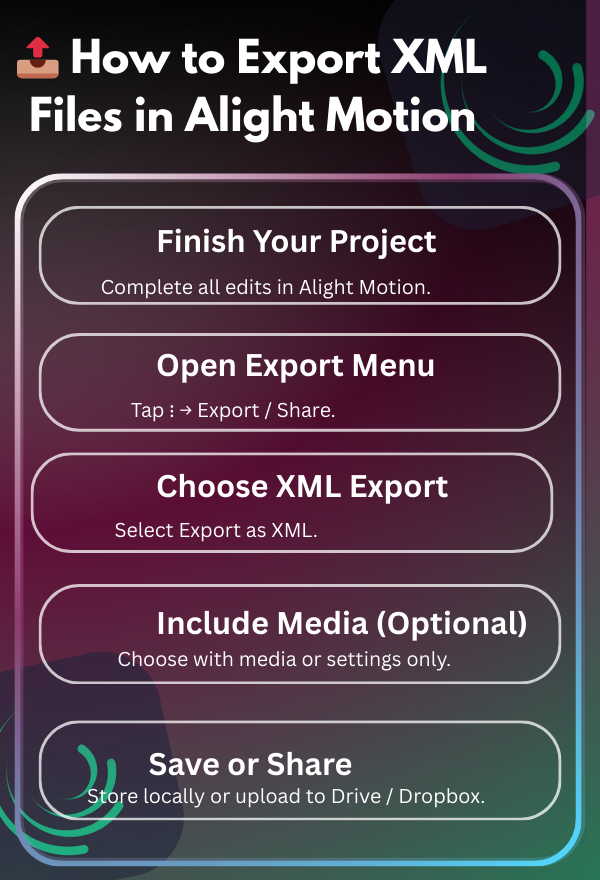
How to Export XML Files in Alight Motion
Exporting your project as XML lets you share your work with friends or back it up for later use.
Steps:
- Finish your project in Alight Motion.
- Tap the three-dot menu → Export/Share.
- Choose Export as XML.
- Select whether to include linked media or just project settings.
- Save it locally or upload to Google Drive/Dropbox for easy sharing.
Example: If you’re working on a collab project, you can export as XML and send it to your teammate. They can open it on their device and continue editing with the same structure.
Bold Tip: Opt for including media if sharing with beginners to minimize setup time.
Troubleshooting Common XML Errors

- “Invalid XML” error → File might be corrupt or from an older app version. Try updating Alight Motion. For fix invalid XML error Alight Motion in 2025, clear app data as a last resort.
- Missing fonts/overlays → XML doesn’t include external assets unless bundled. Reinstall missing fonts manually.
- App crash/freezing → Clear cache or reinstall the app before re-importing.
- Version mismatch → Ensure the XML was created in a version close to yours.
- File won’t unzip? → Use ZArchiver (Android) or Files (iOS). Some XMLs are double-compressed.
Bold Tip: If crashes persist, check community forums for user-reported fixes on v5.0.273+.
Best Practices for XML File Management
- 🗂️ Organize by folders: e.g., “Transitions XML,” “Text Presets,” “Overlays.”
- ⭐ Keep a Favorites list: Store your most-used presets separately.
- ☁️ Cloud backup: Upload to Google Drive or Dropbox so you never lose files. Enhanced cloud backups via Alight Cloud in 2025 make this even more reliable.
- 📝 Use clear names: Rename XMLs (e.g., “Slowmo_BeatSync.xml”) for easier access.
Bold Tip: Periodically review and update your library to incorporate new trends.
Advanced XML Tips for Pro Users
If you’re an advanced editor, XML files can go beyond simple presets:
- ✍️ Edit XML in text editors like Notepad++ to tweak keyframe values manually.
- 🎬 Combine multiple XMLs into one large project by importing separately and merging.
- ⚡ Modify transitions by editing parameter values directly in the XML file.
Warning: This is for advanced users only. A small mistake can make the XML invalid.
2025 Updates: No major XML changes, but enhanced cloud backups via Alight Cloud and improved compatibility for integrating XML with AI effects.
Bold Tip: Try using XML for TikTok’s new AR filters in 2025 to add immersive elements.
Comparison with Other Apps
- CapCut: Easier for beginners with AI auto-captions and quick templates, but XML sharing isn’t supported, limiting deep customization and reusability of project blueprints. It shines in simple social media edits with built-in effects, but lacks the motion graphics depth of Alight Motion, making it less ideal for pros needing precise keyframe control.
- VN Video Editor: Offers multi-track editing and advanced timelines with templates, but not customizable like XML, which restricts collaboration on complex setups. VN is strong in audio syncing and filters, yet its export options are more basic compared to Alight Motion’s flexible XML for backing up intricate animations.
- Alight Motion: XML gives you blueprint-level control, allowing reusability and deeper customization, especially for motion design and visual effects. Unlike the others, it supports professional-grade tools like vector shapes and blending modes, making it superior for creators focused on animation-heavy projects.
Verdict: If collaboration and reusability matter, Alight Motion XML is the best option, particularly in 2025 with its edge in handling AI-integrated effects over CapCut’s beginner-friendly interface or VN’s timeline focus.
Bold Tip: Based on expert reviews, Alight Motion’s XML stands out for E-E-A-T in professional editing communities.
Frequently Asked Questions
FAQs
Conclusion & Next Steps
XML files in Alight Motion are like secret shortcuts that make editing faster, smarter, and more collaborative. Instead of starting from scratch, you can borrow the structure of a project and make it your own — or share your creative setups with others, now enhanced by 2025 trends like integrating XML with AI effects or using XML for TikTok’s new AR filters.
If you’re new, start by importing a simple XML preset and swapping in your clips. Once you’re comfortable, try exporting your own project as XML and share it with friends.
💡 Pro Tip: Join Alight Motion editing communities on Telegram or Instagram. You’ll find tons of free XML presets to practice with.
👉 Call to Action: Have you ever tried using XML presets in Alight Motion? Share your experience in the comments — and don’t forget to check out our other tutorials on adding fonts and fixing app crashes. Encourage sharing real-time tips in comments for ongoing updates, like new errors in v5.0+.
Remember: XML isn’t just a file — it’s a time-saver and creativity booster. Mastering it will make your Alight Motion workflow smoother and your videos more impressive.
Happy editing! 🚀🎥